Microsoft Access
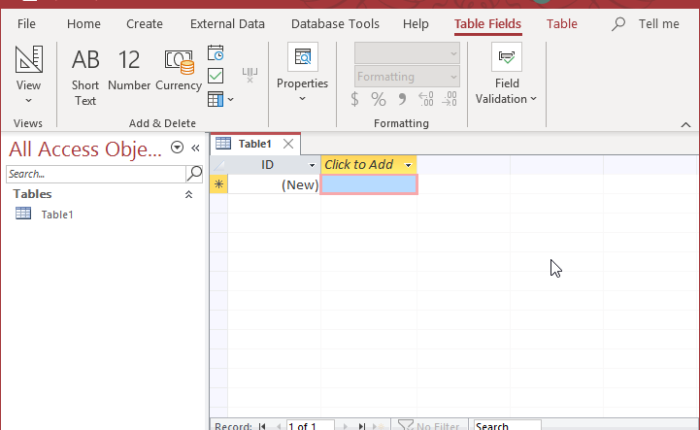
Microsoft Access is a powerful relational database management system (RDBMS) that enables users to organize, manage, and report on large amounts of information. By combining the relational Microsoft Jet Database Engine with a graphical user interface and software-development tools, it serves as a bridge between simple spreadsheets and complex enterprise database systems.
Core Components of Microsoft Access
-
Table: The fundamental building block of a database used to store raw information.
-
Query: A tool used to retrieve, view, and filter data based on specific criteria.
-
Form: A user-friendly interface that facilitates the entry, viewing, and editing of database information.
-
Relationship: This is a vital component that links data between tables using Primary and Foreign Keys. By defining relationships, you enforce referential integrity, ensuring that data remains consistent and avoiding “orphan” records.
-
Property Sheet: This pane serves as the central control panel for every object in your database. It allows you to modify specific attributes—such as field size, default values, input masks, and validation rules—without needing to write code.
-
Relationship Window: A visual interface that displays the schema of your database. It allows users to see how different tables are interconnected and manage the joins (Inner, Left, or Right) between them to ensure data accuracy across the entire system.
-
Indexes: A feature applied to specific fields to dramatically speed up data retrieval and sorting operations in large tables. While they improve read performance, they should be used strategically as they can slightly slow down data entry.
Key Database Objects
Beyond the basic building blocks, Microsoft Access utilizes several advanced objects to manage data lifecycle and presentation:
-
Report: Designed to summarize and present data in a format suitable for printing or digital distribution. Reports allow users to apply grouping, sorting, and calculations to their data, transforming raw records into actionable insights.
-
Macro: A simplified programming tool that allows users to automate common tasks, such as opening forms, running queries, or validating data, without needing to write complex code.
-
Module: Based on Visual Basic for Applications (VBA), modules provide a robust environment for developers to create custom functions and handle complex automation logic that goes beyond the capabilities of standard macros.
Don’t have a copy of Microsoft Access copy? Get one here.
The Microsoft Access Interface
-
Navigation Pane: Located on the left side of the screen, this is the command center of your database. It lists all your database objects—tables, queries, forms, reports, macros, and modules—allowing you to open, rename, or delete them with a right-click.
-
Ribbon: Situated at the top, the Ribbon organizes commands into logical tabs (such as Create, External Data, and Database Tools). It changes dynamically based on the object you are currently editing, showing only the tools relevant to that specific task.
-
Object Tab Bar: Directly below the Ribbon, this area displays tabs for every open database object. You can quickly switch between a table you are editing and a form you are testing by clicking these tabs.
-
Status Bar: Located at the very bottom of the window, it provides immediate feedback, such as the current record number, filtered status, and quick toggles to switch between different views (e.g., Datasheet View vs. Design View).
-
Work Area: This is the large, central workspace where you interact with your data or design your objects. When you open a table, it displays the data; when you open a form, it renders the interactive interface for user input.

Working Views
Microsoft Access provides distinct views that change how you interact with these components:
-
Datasheet View: Used primarily for tables and queries, this view presents data in a grid format (rows and columns), similar to an Excel spreadsheet. It is ideal for quick data entry and general browsing.
-
Design View: This is the developer’s view. It allows you to modify the structure of an object—such as changing data types in a table, adding fields to a form, or setting criteria in a query—without interacting with the actual data records.
-
Layout View: A “what you see is what you get” (WYSIWYG) environment for forms and reports. It allows you to adjust the size and appearance of controls while viewing the actual data, making it easier to design a user-friendly interface.
Conclusion
Microsoft Access stands as a versatile and accessible bridge for anyone looking to transition from basic spreadsheet management to robust database solutions. By leveraging its intuitive interface and powerful relational capabilities, users can organize complex data, automate repetitive tasks, and generate meaningful insights with minimal coding requirements. Whether you are a student building a foundational project or a professional streamlining business workflows, mastering the core components of Access—from tables and queries to reports and macros—equips you with essential skills for effective data management in a digital-first world.
Ready to sharpen your technical vocabulary? Explore our Database Systems Acronyms collection to master the terminology that fuels modern data architecture.
This article is taken from the book “Basics of Computer, Third Edition” by Muhammad Umar. Get a copy here and enhance your understanding and knowledge. It is a perfect book for both beginners and professionals.
Related Posts
Learn more MS Office Concepts
Interesting Stuff in your Inbox
Subscribe to our mailing list to get interesting stuff and updates right in your email inbox. Promise, we will never sell your info to any third party.
Basics of Computer By Muhammad Umar
Basics of Computer, Third Edition, eradicates any intimidation about the computer. With a minimal investment of time, you’ll soon be able to understand basic concepts and perform simple tasks on your computer.


Recent Posts
Ask a Question
Do you have any questions? Rest assured, we're here to provide answers. Join us in our forum where you can engage in fruitful discussions, ask your queries, and receive insightful responses from our esteemed authors and community members. We look forward to your active participation and valuable contributions as we collectively explore various topics. Let's come together and share your thoughts!