How to Shut Down Your Computer Using Keyboard Shortcuts (Windows 11, 10 & Mac)
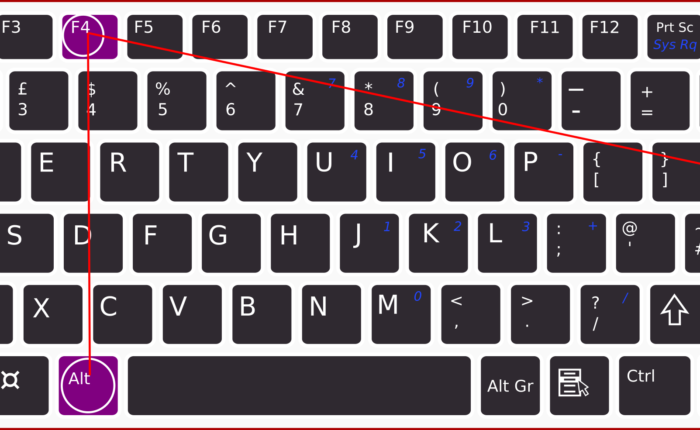
In this post, I am going to show you a quick and easy way for shutting down computer using only keyboard. If you are keyboard lover then here are two simple steps to shut down your PC with help of keyboard shortcut keys.
| Method | Best Used For | Shortcut Keys |
|---|---|---|
| Classic | Closing Apps / Standard Off | Alt + F4 |
| Power User | Windows 10/11 Fast Shutdown | Win + X, then U, U |
| Run Command | When Start Menu Lags | Win + R (Type: shutdown /s) |
| Emergency | Frozen / Unresponsive PC | Ctrl + Alt + Del |
| macOS | All Apple Computers | Ctrl + Opt + Cmd + Power |
Method 1: The Classic Alt + F4 (Desktop Focus)
This is the most well-known method, but many users struggle with it because it closes active windows first. Here is the correct way to use it to shut down the entire system instantly.
1. Minimize all windows: Press Windows Key + D (or Windows Key + M). This takes you directly to the Desktop.
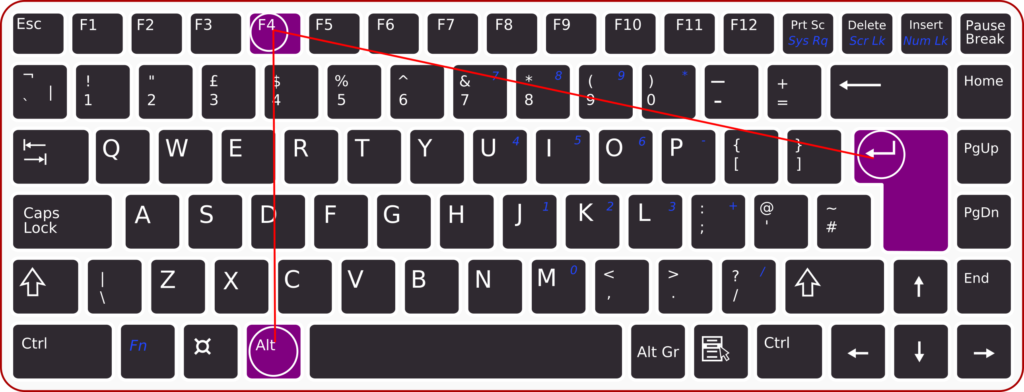
2. Trigger the Dialog: Press Alt + F4 . A “Shut Down Windows” box will appear.
3. Confirm: Since “Shut down” is usually selected by default, simply press Enter.
Note: If “Switch User” or “Sign out” is selected by default, use the Up/Down Arrow keys to select “Shut down” before pressing Enter.

Method 2: The "Power User" Menu (Win + X) – Recommended for Windows 10 & 11
If your mouse is broken, this is the fastest and most reliable method for modern Windows computers. It works regardless of what applications / windows are open.
-
Press Windows Key + X. This opens the Quick Link menu (bottom left of the screen).
-
Press the letter U. This expands the “Shut down or sign out” menu.
-
Press U again. This immediately triggers the shutdown.
Memorize this sequence: Win + X, U, U.
Method 3: The Command Method (Win + R)
If the Windows UI is lagging or the Start menu isn’t popping up, the “Run” command is a powerful alternative.
-
Press Windows Key + R to open the Run dialog box.
-
Type the following command:
shutdown /s /t 0 -
Press Enter.
-
Breakdown of command:
/sstands for shutdown, and/t 0sets the timer to zero seconds (instant).
Method 4: The Emergency Method (Ctrl + Alt + Delete)
Use this method if your computer is freezing or an application has crashed and locked your screen.
-
Press Ctrl + Alt + Delete simultaneously. This opens the security screen.
-
Use the Tab key to cycle through the options until the Power Icon (usually in the bottom right corner) is highlighted.
-
Press Enter to open the power menu.
-
Use the Down Arrow to select "Shut down" and press Enter.
Method 5: How to Shut Down a Mac Without a Mouse
We can’t forget macOS users. Here are the quickest shortcuts for Apple computers:
-
Standard Shutdown: Press Control + Option + Command + Power Button (or Eject key).
-
Action: Quits all apps safely and shuts down the Mac immediately.
-
-
Sleep Mode: Press Option + Command + Power Button (or Eject key).
-
Action: Puts the Mac to sleep instantly.
-
-
Force Shutdown (Emergency): Press and hold the Power Button for 5–10 seconds. (Use this only if the system is completely frozen).
Keep Learning: Computer Basics
Frequently Asked Questions
1. What is the shutdown shortcut key in Windows 11?
2. What is the shutdown shortcut key in Windows 10?
3. What is the shutdown shortcut key in Windows 7?
4. How do I turn off a computer using only the keyboard on a Chromebook?
5. What is the shortcut key to shut down a PC?
6. How do I shut down a laptop with the keyboard when the screen is black?
shutdown /s /t 0 and press Enter. If the system is frozen, hold the physical Power button for 5–10 seconds.
7. What is the shutdown shortcut key for Lenovo laptops?
8. How do I shut down a PC without a mouse?
9. What does Alt + F4 do?
10. How do I force a shutdown?
11. What is the fastest way to shut down my PC with the keyboard?
12. How to shut down a PC without the power button?
13. How to shut down a PC without the Start button?
14. How to shut down a computer using only the keyboard on Windows 11/10/7?
15. How to shut down a frozen computer?
16. What are the different ways to shut down a PC using only the keyboard?
2. Win → Right Arrow → Enter
3. Ctrl + Alt + Del → Power Icon
4. Win + X → U → U
17. How do I turn off my laptop by typing commands?
shutdown /s /t 0, and press Enter.
18. Can Ctrl + Alt + Delete restart a PC?
19. How do I turn off a PC using only the keyboard without Alt + F4?
20. How do I shut down a PC without keyboard and mouse?
21. How to shut down a PC using the keyboard without a monitor?
shutdown /s /t 0 and press Enter. This is safer than relying on menus you cannot see.
22. How do I turn on a PC with a keyboard (if supported)?
23. Can I turn on a computer if the power button is not working?
24. What to do if the PC power button is broken?
Learn more Practical skills
Interesting Stuff in your Inbox
Subscribe to our mailing list to get interesting stuff and updates right in your email inbox. Promise, we will never sell your info to any third party.
Basics of Computer By Muhammad Umar
Basics of Computer, Third Edition, eradicates any intimidation about the computer. With a minimal investment of time, you’ll soon be able to understand basic concepts and perform simple tasks on your computer.

Recent Posts
Ask a Question
Do you have any questions? Rest assured, we're here to provide answers. Join us in our forum where you can engage in fruitful discussions, ask your queries, and receive insightful responses from our esteemed authors and community members. We look forward to your active participation and valuable contributions as we collectively explore various topics. Let's come together and share your thoughts!